
By Thomas Welch
Running a basketball scoreboard means keeping the game clock in sync with the officials and updating the score, team fouls, bonus, possession, and timeouts as the game moves. This guide walks through each job on a Fair-Play basketball scoreboard, with steps for the two most common Fair-Play controllers: the wired MP-70 (and its wireless version, the MP-73) and the battery-powered wireless MP-80.
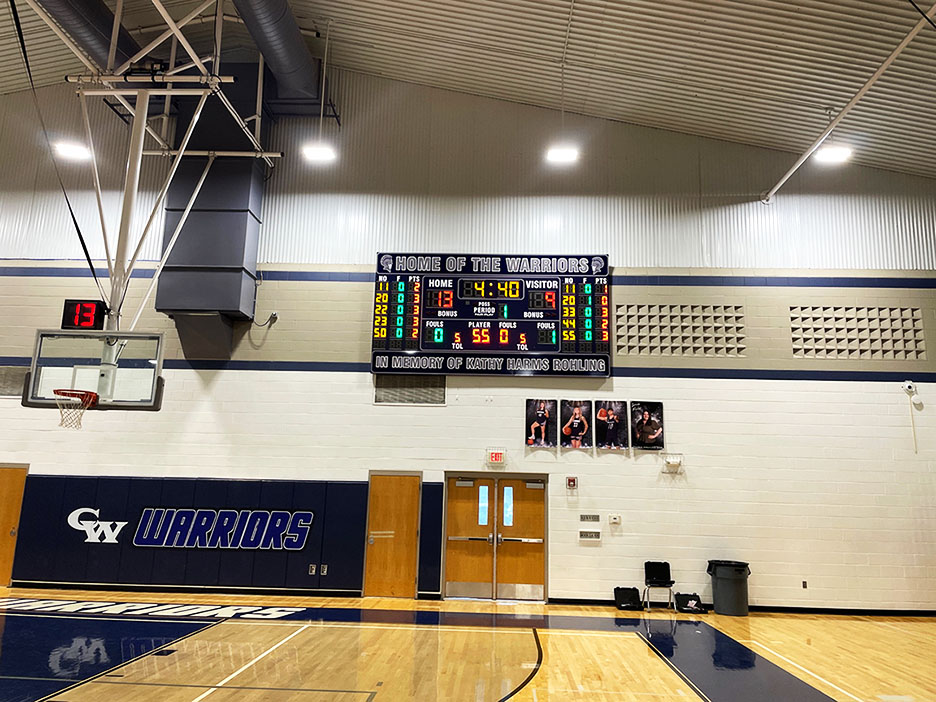
What Is on a Basketball Scoreboard?
| Display | What it shows |
|---|---|
| HOME / VISITOR | Each team’s score |
| Game clock | Time left in the period, counting down |
| PERIOD | The current quarter, half, or overtime |
| FOULS | Team fouls in the current quarter or half |
| BONUS | Which team is in the bonus or double bonus |
| POSS | The possession arrow |
| TOL | Timeouts left for each team |
| PLAYER / FOULS | The number of the player who fouled and that player’s total |
Many gyms also have a shot clock above each basket. For more on the indicators, see what BB means on a basketball scoreboard and what TOL means on a scoreboard.
Before Tip-Off: Pregame Setup
Do these steps at least 20 minutes before the game, from your seat at the scorer’s table.
- Power up the scoreboard and shot clocks. Plug in the MP-70, or check that the MP-80 is charged.
- Check the sport. On the MP-70, BB appears in the upper-left corner of the screen.
- Clear the last game so the score, fouls, and timeouts start at zero.
- Set the period length for your level of play.
- Check the bonus settings, timeouts, and shot clock reset times for the rules you are playing under. Varsity and junior varsity games may use different settings.
- Test the horn, the shot clocks, and the handswitch, and run the clock for a few seconds.
| Task | MP-70 / MP-73 | MP-80 |
|---|---|---|
| Clear the last game | SHIFT + NEW GAME, then SHIFT + YES | MENU > NEW GAME > YES |
| Set the period length | CLOCK SET, type the time, ENTER | CLOCK, choose a preset or type a time, ENTER |
| Change to basketball | Hold ENTER while turning on, then answer the CHANGE SPORT prompts | MENU > CHANGE SPORT |
| Bonus foul limits | Basketball settings: BONUS FLS and MAX. T.FOULS | MORE > BONUS > EDIT BONUS |
| Shot clock reset times | Basketball settings: Timer Set #1, #2, and #3 | DEFAULT > TIMER RESET 1 or 2 |
| Player fouls and points | Basketball settings: FOUL MEMORY and POINTS MEMORY | MENU > Initial Setup > PLAYER FOULS / PLAYER POINTS |
Running the Game Clock
Start the clock when the ball is legally touched on the floor and stop it on every whistle.
- MP-70 / MP-73: flip the TIME IN switch to start and stop the clock. If you run the clock from a handswitch, leave the console’s TIME IN switch in the time-out position.
- MP-80: press START and STOP, or use an HS-80 handswitch set for the game clock.
To show tenths of a second in the last minute of each period, turn on the tenths of seconds option in the basketball settings.
Updating the Score and Period
- MP-70 / MP-73: press HOME SCORE or VISITOR SCORE, then +1, +2, or +3. If points memory is on, the controller asks for the scoring player’s number. Type it and press ENTER.
- MP-80: press the key next to the home or visitor score and choose a preset, or press EDIT SCORE to type the score.
- Period: press PERIOD and +1 on the MP-70, or press +1 or EDIT PERIOD on the MP-80.
Tracking Team and Player Fouls
On the MP-70 / MP-73
- Press HOME FOULS or VISITOR FOULS.
- Press +1 to add a team foul.
- If foul memory is on, type the player number at the ENTER PLY # prompt and press ENTER. The player’s fouls show in the player foul area for 15 seconds.
To correct the team fouls, press HOME FOULS or VISITOR FOULS, type the correct total, and press ENTER. Team fouls stop increasing at the maximum set in the basketball settings.
On the MP-80
Press FOULS, then +1. If foul memory is on, enter the player number. To correct the count, press EDIT TM FOULS, type the total, and press ENTER.
Bonus and Double Bonus
- MP-70 / MP-73: press HOME BONUS or VISITOR BONUS to cycle through bonus on, double bonus, and off.
- MP-80: press MORE, then BONUS, and choose single or double bonus. Use EDIT BONUS to set how many team fouls trigger each one.
Bonus rules differ by level, and high school rules changed in 2023–24. See what BB means on a basketball scoreboard for a comparison by level.
Possession and Timeouts
- Possession: press NEXT.POSS. on the MP-70 or POSS on the MP-80 to switch the arrow.
- Timeouts on the MP-70 / MP-73: stop the clock, then press HOME TIMEOUT or VISITOR TIMEOUT once for a full timeout or twice for the shorter alternate timeout. Press -1 to start the timeout timer and subtract a timeout. A warning horn can sound before the shorter timeout ends.
- Timeouts on the MP-80: press MORE, then TOL, and choose -1 with no timer, or -1 and start timeout timer 1 or 2. Press STOP T.O. to end the timeout.
Running the Shot Clocks
Shot clocks are often run by a separate operator with a handswitch.
With the MP-70 / MP-73
- With an HS-70 (high school) or HS-70-R2 (college) handswitch, hold RESET to reset the shot clock and release it to start the countdown.
- The shot clock is tied to the game clock and will not count down while the game clock is stopped.
- To use a different reset time once, turn off TIME IN, press SET TIMER/T.O.D., type the time, and press ENTER.
- To switch the stored reset time between games, such as junior varsity followed by varsity, clear the game, then press SET TIMER/T.O.D. twice and choose the other value.
With the MP-80
Set the two reset times with DEFAULT and TIMER RESET 1 or TIMER RESET 2, then run the shot clock from the HS-80 handswitch. To run with no shot clock, press BLANK.
Between Periods and at Halftime
- Stop the clock at the end of the period. With auto horn on, the horn sounds automatically.
- Set the clock for the break. On the MP-70, press CLOCK SET until SET BRK appears, then press ENTER.
- Before play resumes, set the clock for the next period and advance the period.
- If your rules reset team fouls each quarter or half, set each team’s fouls back to zero and turn off the bonus indicators.
Player Statistics Panels
If your scoreboard has player stat panels, the MP-70 can show each player’s fouls and points. To put a player in, press HOME FOULS or VISITOR FOULS, press +2 IN/OUT, type the player number, and press ENTER. Repeat the same steps to take a player out, or press CLR instead of a number to clear the whole team for a mass substitution. On the MP-80, use MORE > PLAYER IN/OUT. Larger stat displays may use an SP-70 statistics controller or a second MP-80 in stat controller mode.
Basketball Scoreboard Troubleshooting
The shot clock will not count down
On the MP-70, the shot clock only runs while the game clock is running. Check that the game clock is started.
Team fouls stop going up
Team fouls stop at the maximum number set in the basketball settings. Change MAX. T.FOULS if you need a higher limit, or enter 99 for no limit.
The controller keeps asking for a player number
Foul memory or points memory is turned on. Enter the player number, or turn those options off in the basketball settings if you do not track player stats.
The scoreboard is blank or does not respond
- Check power to the scoreboard and controller, and the data cable on wired controllers.
- For wireless controllers, make sure the controller and scoreboard are on the same wireless group.
Basketball Scoreboard FAQs
How do I turn on double bonus?
On the MP-70, press the team’s BONUS key until double bonus appears. On the MP-80, choose double bonus under MORE > BONUS.
Can the scoreboard run junior varsity and varsity games back to back?
Yes. The MP-70 can store more than one shot clock reset time, and both controllers can save settings for different games. See our MP-70 guide for saved configurations.
How many people does it take to run a basketball scoreboard?
One person can run the scoreboard, but many gyms add a second person for the shot clock.
Controller Guides and Support
- How to use the MP-70 scoreboard controller
- How to use the MP-80 scoreboard controller
- MP-70/50 Series User Guide (PDF)
- MP-80 User Guide (PDF)
Looking for a new board? Explore Fair-Play basketball scoreboards. For help with your scoreboard, contact Fair-Play support or call the Fair-Play Help Desk at (800) 462-2716, Monday through Friday, 7:00 a.m. to 5:00 p.m. Central.